Receive with a barcode scanner
When you receive a purchase order, you can scan each item instead of typing quantities. The Select Products to Receive page then helps you spot mistakes as you go:
- Each row is colored by how much of it you have received.
- Receiving more than you ordered turns the row red and plays its own warning sound.
- If a barcode ends up in a quantity box by mistake, the app stops and asks you before anything is saved.
- You can sort the list so that the products you still have to receive come first, or the other way around.
To open the page, open a purchase order and click Receive (see Receive Purchase Order).
Scan items
Click in Enter Barcode and scan an item. The app finds the product with that barcode and adds 1 to its Qty To Receive. The row you just scanned moves to the top of the list and gets a short blue outline, so you can see which product it was.
If the same product is on several lines of the PO, each scan adds 1 to the first line that isn't fully received yet.
If no product on the PO has that barcode, you see No matching Barcode Data found. and hear an error buzz.
Use Scan sound to choose what you hear:
- Errors only (default): a buzz when a barcode isn't found, and the over-quantity warning described below.
- Success and errors: also a short high beep for every product found.
- Silent: no sounds.
Your choice is saved in your browser.
Row colors
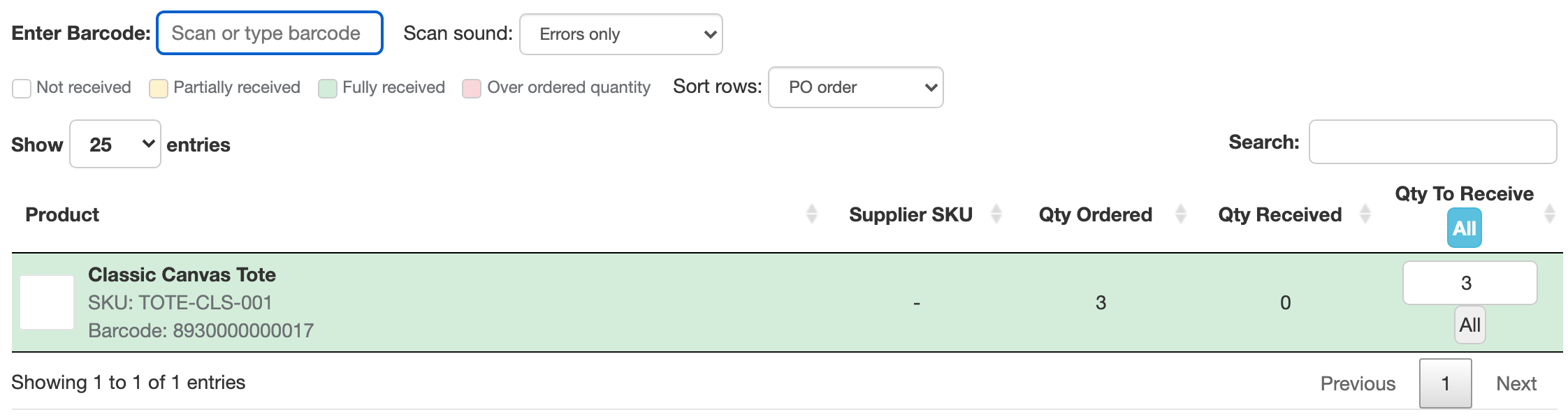
The line above the list explains the colors. Each row compares Qty Received + Qty To Receive with Qty Ordered:
| Color | Meaning | Example (ordered 10) |
|---|---|---|
| White | Not received: nothing received yet | Received 0, To Receive 0 |
| Yellow | Partially received | Received 4, To Receive 2 |
| Green | Fully received: exactly the quantity you ordered | Received 4, To Receive 6 |
| Red | Over ordered quantity: more than you ordered | Received 4, To Receive 7 |
The color changes as soon as you scan or change a quantity, so you can check a delivery against the packing slip while you scan.
Receiving more than you ordered
What happens depends on Allow receiving more than the ordered quantity in Settings > Purchase orders.
When it's on, you can still receive the extra units, because suppliers sometimes really do send more. As soon as a row goes over the ordered quantity:
- the row turns red and its Qty To Receive box gets a red border,
- you hear three short beeps going down in pitch, a different sound from the not-found buzz,
- the message Received quantity is over the ordered quantity. shows above the list.
You hear the warning with Errors only and Success and errors, not with Silent. If you lower a quantity that's still over the ordered quantity, the warning doesn't play again.
When it's off, scanning an item that's already fully received doesn't add anything: you hear the error buzz and see Cannot receive more than the ordered quantity. Turn on "Allow receiving more than the ordered quantity" in Settings to allow it. If you type a quantity that's too high, the box goes back to the most you can receive on that line, which is the quantity that will be received.
A barcode in the quantity box
It's easy to type a quantity by hand, forget to click back in Enter Barcode, and keep scanning. The scanner then types the barcodes into the quantity box instead. The app watches for this.
Press Enter to go back to scanning. After you type a quantity, press Enter: the quantity is saved and the cursor goes back to Enter Barcode, ready for the next scan.
A reminder when the scanner isn't ready. Once you've scanned on this page, a red bar appears at the bottom of the screen when the cursor is in a quantity box or nowhere: Scanner paused. Click here to continue scanning. Click it to go back to Enter Barcode. The bar doesn't show while you type the invoice number, the note or another field.
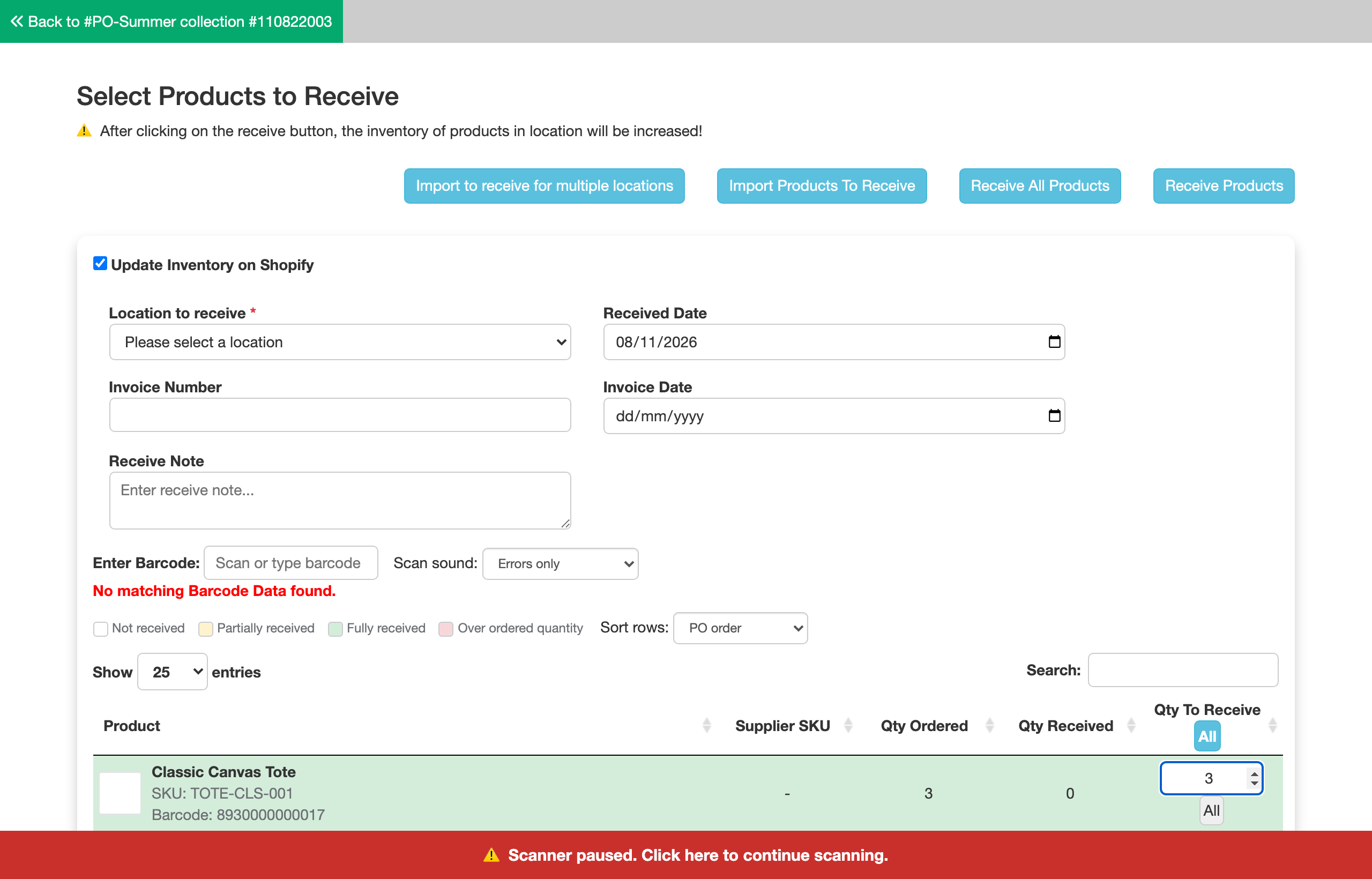
The app asks before saving a suspicious quantity. When you press Enter or leave a quantity box, the app checks what was entered. It stops and asks you if:
- the characters came in as fast as a scanner types them,
- the number contains a barcode of a product on this PO, or
- the number is much higher than expected: more than 3 times what's left to receive, and more than 50 units over it.
You hear the error buzz and see Was this a barcode scan? with the product, the quantity entered and the quantity left to receive. Nothing has been saved yet.
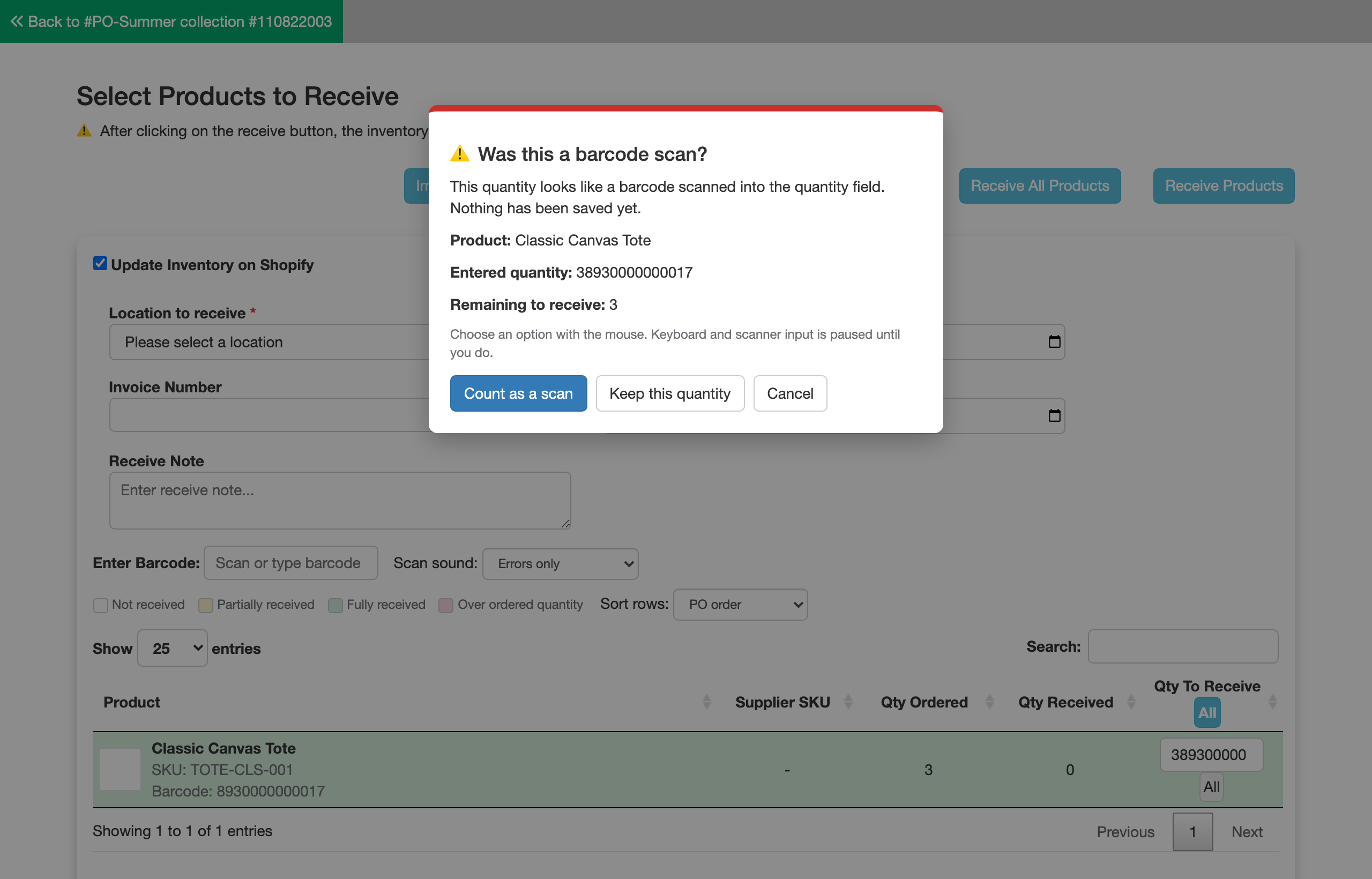
- Count as a scan: puts the quantity back to what it was, and adds 1 to the product whose barcode you scanned, even if it's on another line.
- Keep this quantity: saves the quantity you entered, for example when you really did receive a large delivery.
- Cancel (or Esc): puts the quantity back to what it was.
While the window is open, keyboard and scanner input is paused: if you keep scanning, nothing is typed and the app buzzes again to remind you. Choose an option with the mouse. You can also press Tab to move to a button and Space to choose it.
Sort rows by receiving status
Use Sort rows above the list:
- PO order (default): the same order as the products on the purchase order.
- Incomplete first: partially received (yellow), then not received (white), then over ordered (red) and fully received (green).
- Completed first: over ordered (red) and fully received (green) first, then partially received (yellow), then not received (white).
Sorting uses Qty Received only, which is what you received in earlier deliveries, not the Qty To Receive you're entering now. That way rows don't jump around while you scan. Within each group, products keep their PO order, and the row you just scanned still moves to the top.
Example: you ordered 10 units of a product, received 4 last week and scan 6 today. The row turns green while you scan, but it stays with the partially received products, because 4 of 10 have been received so far.
Your choice is saved in your browser, so the next time you receive a purchase order the list is sorted the same way.
FAQ
Why didn't I get the "Was this a barcode scan?" window? Some wireless scanners type more slowly than usual. The app still catches the mistake when the number contains a barcode from the PO or is far above the quantity left to receive.
Why does a green row sit with the partially received products? Sort rows only looks at what was received in earlier deliveries. The color also counts what you're receiving now.
I don't see Sort rows. A few stores have their own fixed order for this page. For them, the list keeps that order and Sort rows isn't shown.